🛤️ 便携轨道检测系统 - 用户操作手册
🛤️ Portable Track Detection System - User Manual
安装 / Install
离线APP下载(downlaod)
📎 PTD_v1.0.148_20260703-user-release.apk
2026年7月3日更新(Updated July 3, 2026)
修复了坐标库管理及UI显示的重要BUG,请老版本用户尽快更新。(Fixed a critical bug in coordinate library management. Users of older versions are encouraged to update as soon as possible.)
检测记录查看工具(适用于windows)
Detection record viewing tool (for Windows)
目录 / Table of Contents
- 应用概述 / Application Overview
- 隐私政策与启动 / Privacy Policy & Startup
- 实时监测(首页)/ Real-time Monitoring (Home)
- 开始检测任务 / Starting a Detection Mission
- 检测记录(历史台账)/ Detection Ledger (History)
- 任务详情与波形回放 / Mission Report & Waveform Playback
- 线路数据(坐标库)/ Line Data (Mapping Library)
- 自动采集与锚点管理 / Auto Mapping & Anchor Management
- 坐标库管理与优化 / Library Management & Optimization
- 参数配置(设置)/ Configuration (Settings)
- 传感器校准 / Sensor Calibration
- 车型管理 / Vehicle Management
- 数据安全与维护 / Data Security & Maintenance
- 授权与注册(关于页面)/ Authorization & Registration (About)
- 用户操作说明(内置帮助)/ Built-in User Manual
- 常见问题排查 / Troubleshooting
1. 应用概述 / Application Overview
(CN) 应用简介
便携轨道检测 是一款专业级的铁路轨道平顺度检测 Android 应用。通过手机内置的加速度传感器和 GPS 定位模块,实时采集车辆运行中的垂直加速度(Z 轴)、水平加速度(X 轴),并结合坐标库系统计算精确里程,实现对轨道高低不平顺和水平问题的实时监测与报警。
本应用适用于铁路工务线路动态检测场景。
(EN) Overview
Portable Track Detection is a professional-grade railway track quality inspection Android app. Using the phone's built-in accelerometer and GPS module, it collects real-time vertical acceleration (Z-axis) and horizontal acceleration (X-axis) during vehicle operation. Combined with the coordinate library system, it calculates precise mileage, enabling real-time monitoring and alerting for track surface irregularities and alignment issues.
This app is suitable for railway maintenance, large machinery sections, inspection vehicles, and can replace some expensive professional detection instruments.
(CN) 核心功能模块
| 模块 | 功能说明 |
|---|---|
| 实时监测 | 实时显示加速度波形、速度、里程,一键开始/停止检测 |
| 检测记录 | 查看历史检测任务,回放波形,导出报表 |
| 线路数据 | 构建 GPS 坐标库,手动锚点校准,多行程数据融合 |
| 参数配置 | 设置报警门限、传感器参数、车型管理、数据维护 |
(EN) Core Modules
| Module | Description |
|---|---|
| Real-time | Display acceleration waveform, speed, mileage; one-tap start/stop |
| Ledger | Review history sessions, replay waveforms, export reports |
| Mapping | Build GPS coordinate library, manual anchor calibration, multi-run fusion |
| Config | Set alert thresholds, sensor parameters, vehicle profiles, data maintenance |
2. 隐私政策与启动 / Privacy Policy & Startup
(CN) 首次启动流程
- 隐私协议弹窗:首次打开应用时,系统会弹出《隐私政策与服务条款》对话框。
- 明确告知用户收集的数据类型:位置信息、传感器数据、剪贴板、存储权限。
- 点击 "同意并继续" 进入主界面。
- 点击 "拒绝并退出" 将关闭应用。
- 权限申请:同意隐私协议后,系统会依次请求以下权限:
- 位置权限(必须):用于轨道测绘与定位,包含精确位置和粗略位置。
- 通知权限(Android 13+):用于后台服务持续运行通知。
- 如拒绝位置权限,应用将弹出权限说明对话框,引导用户重新授权。
(EN) First Launch
- Privacy Dialog: On first launch, the Privacy Policy & Terms dialog appears.
- Informs about data collection: Location, Sensors, Clipboard, Storage.
- Tap "Agree" to enter the main screen.
- Tap "Refuse & Exit" to close the app.
- Permission Requests: After consent, the system requests:
- Location Permission (required): For track mapping and positioning (precise + coarse).
- Notification Permission (Android 13+): For persistent background service notification.
- If denied, a rationale dialog explains why location is essential.
界面元素 / UI Elements
| 元素 | 中文 | English |
|---|---|---|
| 标题 | 隐私政策与服务条款 | Privacy Policy & Terms |
| 确认按钮 | 同意并继续 | Agree |
| 取消按钮 | 拒绝并退出 | Refuse & Exit |
| 权限说明标题 | 权限申请说明 | Permission Request |
| 确认按钮 | 我知道了 | Got it |
3. 实时监测(首页)/ Real-time Monitoring (Home)
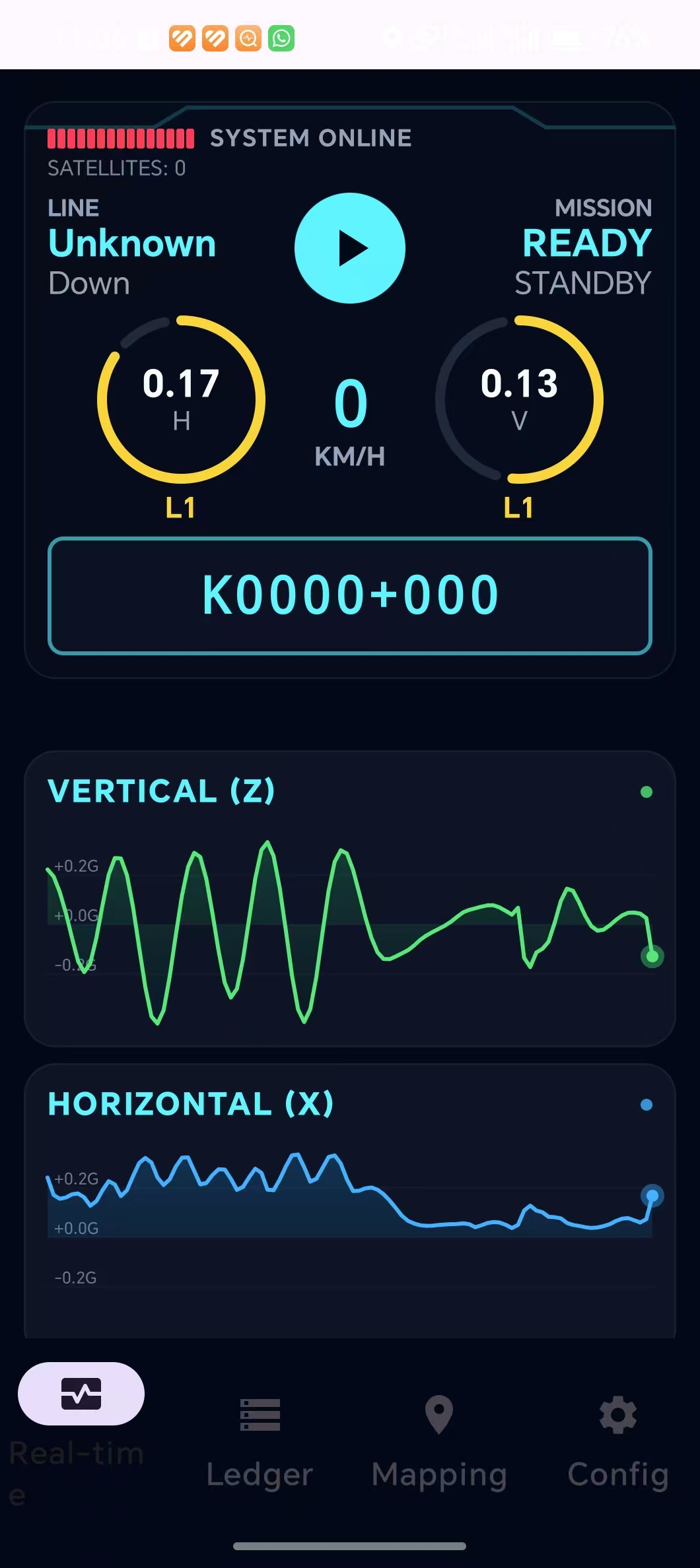
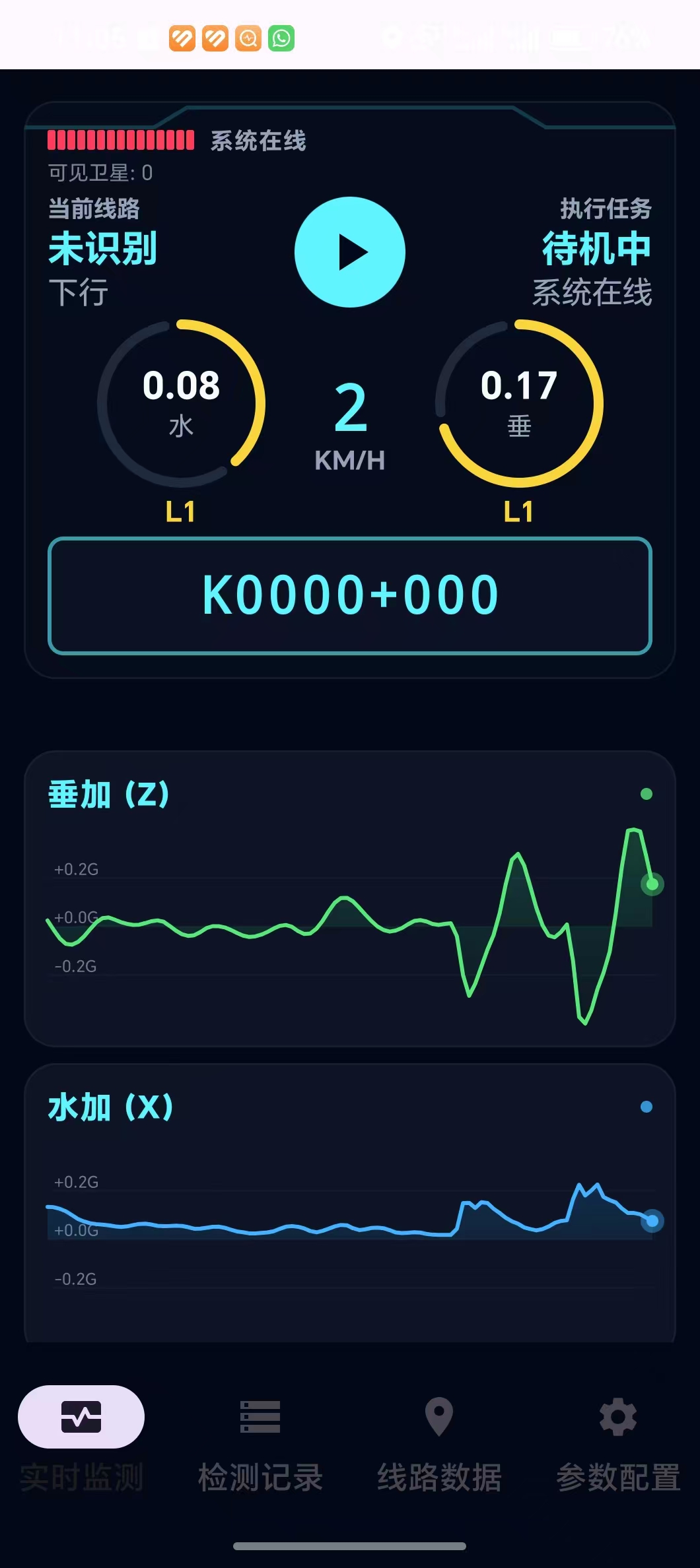
这是应用的主页面,也是打开应用后默认显示的界面。代码对应 DetectionScreen Composable 函数。
(CN) 界面布局(从上到下)
3.1 未注册提示条
- 当设备未授权或试用已过期时,顶部会显示红色警告条 "软件未注册,部分功能受限"。
- 点击该提示条可跳转到"关于"页面进行激活。
- 试用期结束后未授权时APP仅能使用实时检测功能。
3.2 GPS 卫星指示灯
- 位于仪表盘顶部左侧。
- 由 15 阶指示灯组成,模拟卫星信号强度:
- 绿色:卫星数 >= 10,GPS 信号优良。
- 黄色:卫星数 5-9,信号一般。
- 红色:卫星数 < 5 或 GPS 丢失,信号差。
- 灰色:未使用的指示位。
- 右侧显示 "系统在线" 状态及当前时间(格式:MM-dd HH:mm)。
- 卫星数文字提示:"可见卫星: N"。
3.3 HUD 仪表盘 (TechHudDashboard)
这是首页的核心显示区域,高度 300dp,深色科技风格:
实时位置区(左侧):
- 标签:"实时位置"
- 线路名称(如"京沪线"),以青色高亮大字显示。
- 行别方向(上行/下行/单线),以灰色小字显示。
执行任务区(右侧):
- 标签:"执行任务"
- 未检测时:显示"待机中" / "系统在线"。
- 检测中:显示车次编号和车型名称。
中央速度表:
- 大号等宽字体显示当前速度(KM/H)。
- 速度值以动画平滑过渡(100ms 动画时长)。
加速度仪表盘(左侧):
CircularGauge:圆形进度指示器,显示水平加速度 (H / 水加)。- 数值精确到 2 位小数(如 0.05g)。
- 根据级别着色:OK (青色)、L1 (黄色)、L2 (橙色)、L3 (红色)。
- 最大量程 0.20g。
加速度仪表盘(右侧):
CircularGauge:圆形进度指示器,显示垂直加速度 (V / 垂加)。- 最大量程 0.25g。
里程显示条 (TechMileageDisplay):
- 位于仪表盘底部,高 60dp。
- 大号等宽字体(24sp)显示当前推算里程。
- 青色边框高亮卡片。
3.4 开始/停止按钮 (ArcStartButton)
- 位于仪表盘中央,56dp 圆形按钮。
- 待机状态:青色圆形,显示 ▶ 播放图标。点击弹出检测启动对话框。
- 检测中状态:红色圆形,显示 ■ 停止图标。点击停止检测。
- 按下列表 (Z history):当
isRecording为 true 时,停止按钮为红色。
3.5 实时波形图
垂加 (Z) 波形图 (
TechChartCard):- 标题:"VERTICAL (Z)" 或 "垂加 (Z)"。
- 高度 150dp。
- 绿色波形线 (
Color(0xFF00E676))。 - 基线 0.0g,Y 轴范围 ±0.4g。
- 最多显示 100 个数据点。
水加 (X) 波形图:
- 蓝色波形线 (
Color(0xFF00B0FF))。 - 其余与 Z 波形图相同。
- 蓝色波形线 (
(EN) Layout (Top to Bottom)
3.1 Unregistered Warning Banner
- When the device is not authorized or trial expired, a red banner "Software Not Registered" appears at the top.
- Tap it to navigate to the About page for activation.
- After the trial period ends and authorization is not granted, the app can only use the real-time detection function.
3.2 GPS Satellite Indicator
- Top-left of the dashboard.
- 15-step LED bar showing satellite signal strength:
- Green: Satellites >= 10, excellent GPS.
- Yellow: Satellites 5-9, moderate.
- Red: Satellites < 5 or GPS lost, poor.
- Gray: Unused indicator slots.
- Shows "SYSTEM ONLINE" status with current time (MM-dd HH:mm).
- Satellite count text: "SATELLITES: N".
3.3 HUD Dashboard (TechHudDashboard)
Main display area, 300dp height, dark tech-style:
Location Area (left):
- Label: "LOCATION"
- Line name (e.g., "Beijing-Shanghai") in cyan bold.
- Direction (Up/Down/Single) in gray.
Mission Area (right):
- Label: "MISSION"
- Idle: "READY" / "STANDBY".
- Recording: Train number and vehicle type.
Central Speedometer:
- Large monospace font showing current speed (KM/H).
- Smooth animation (100ms transition).
Acceleration Gauge (left):
CircularGauge: Horizontal acceleration (H).- Value to 2 decimal places.
- Colored by level: OK (cyan), L1 (yellow), L2 (orange), L3 (red).
- Max range 0.20g.
Acceleration Gauge (right):
CircularGauge: Vertical acceleration (V).- Max range 0.25g.
Mileage Display (TechMileageDisplay):
- Bottom of dashboard, 60dp height.
- Large monospace font (24sp) showing current calculated mileage.
- Cyan-bordered card.
3.4 Start/Stop Button (ArcStartButton)
- Center of dashboard, 56dp circular button.
- Standby: Cyan circle with ▶ icon. Tap to open detection start dialog.
- Recording: Red circle with ■ icon. Tap to stop.
- Red when
isRecordingis true.
3.5 Real-time Waveform Charts
Vertical (Z) Chart (
TechChartCard):- Title: "VERTICAL (Z)".
- Height 150dp.
- Green waveform line.
- Baseline 0.0g, Y-axis range ±0.4g.
- Max 100 data points displayed.
Horizontal (X) Chart:
- Blue waveform line.
- Same layout as Z chart.
波形图交互操作 / Waveform Interaction
(CN)
- 点击数据点:点击波形图上任意位置,系统会自动计算对应数据点索引。再次点击同一位置可取消选中。
- 选中效果:显示一条贯穿的竖线指示选中位置,并在该数据点绘制高亮圆点。
- 自动滚动:新数据从右侧进入,旧数据从左侧挤出,始终保持最新的 100 点显示。
(EN)
- Tap Data Point: Tap anywhere on the waveform to select the corresponding data point. Tap again to deselect.
- Selection Effect: A vertical cursor line and highlighted dot indicate the selected point.
- Auto-scroll: New data enters from the right, old data exits from the left. Always shows the latest 100 points.
4. 开始检测任务 / Starting a Detection Mission
(CN) 启动流程
当用户点击仪表盘中的播放按钮(青色 ▶)时,弹出 开始检测对话框 (StartDetectionDialog):
对话框字段:
线路名称(输入框):
- 如果当前 GPS 已识别出线路名,自动填入。
- 如果线路名为"未识别线路"或 "Unknown",输入框为空,需要手动输入。
车次/编号(输入框):输入本次检测的车次或编号。
行别(选择组):
- 三个过滤芯片 (FilterChip):上行 / 下行 / 单线。
- 默认选中"下行"。
- 单选模式,选中高亮为青色。
同步开启线路坐标采集(复选框):
- 勾选后,在检测的同时自动采样 GPS 坐标点用于更新坐标库。
- 每 100 米自动记录一个采样点。
车型选择(下拉菜单):
- 显示当前选中的车型名称。
- 点击展开下拉菜单,列出所有已配置的车型。
- 不同车型对应不同的 L1/L2/L3 报警门限。
确认操作:
- 点击 "OK" 按钮,系统将:
- 保存线路名、车型、车次、行别等配置。
- 启动后台检测服务 (
InspectorService)。 - 如果勾选了同步采集,同时启动线路坐标采集。
- 界面进入倒计时阶段。
(CN) 检测倒计时
启动后,全屏显示:
- "请将手机固定在车内检测位置" — 提醒用户固定设备。
- 倒计时数字:从 6 秒开始倒数,80sp 大号字体。
- 倒计时期间无法操作,确保设备在检测开始前已稳定放置。
- 倒计时结束后,自动进入检测状态,开始记录加速度数据。
(EN) Startup Flow
When the user taps the play button (cyan ▶) in the dashboard, the Start Detection Dialog appears:
Dialog Fields:
Line Name (text field): Auto-filled if GPS has identified a line. Empty if unknown.
Train No (text field): Enter the train/vehicle number for this detection.
Direction (chip group):
- Three FilterChips: Up / Down / Single.
- Default: "Down".
- Single selection, cyan highlight when selected.
Mapping Simultaneously (checkbox):
- When checked, GPS coordinate points are auto-sampled during detection to update the coordinate library.
- One sample every 100 meters.
Vehicle Selection (dropdown):
- Shows the currently selected vehicle profile name.
- Tap to expand and choose from all configured vehicles.
- Different vehicles have different L1/L2/L3 thresholds.
Confirmation:
- Tap "OK" to:
- Save line name, vehicle, train number, direction settings.
- Start the background detection service (
InspectorService). - Start coordinate mapping if the checkbox was checked.
- Enter countdown phase.
(EN) Detection Countdown
After start, full-screen overlay shows:
- "Place phone steady on train" — reminds user to secure the device.
- Countdown number: Counts from 6, large 80sp font.
- UI is non-interactive during countdown to ensure device stability.
- After countdown, recording begins automatically.
5. 检测记录(历史台账)/ Detection Ledger (History)
该页面通过底部导航栏第二个图标进入。代码对应 HistoryScreen Composable。
(CN) 页面功能
- 标题:"检测历史记录" / "DETECTION LEDGER"。
- 未读报警标记:
- 底部导航栏的"检测记录"图标带有角标 (Badge) 显示未读 L3 报警数量。
- 进入该页面后自动标记为已读,角标消失。
- 记录列表:
- 显示所有历史检测任务(session)。
- 无数据时显示"暂无记录" / "NO DATA"。
- 记录项操作:
- 点击某条记录进入 详情页。
- 长按某条记录弹出删除确认对话框。
- 导出功能:
- 点击右上角导出按钮,弹出导出对话框。
- 选项 1:全部记录(波形+超限) — 导出含经纬度的完整 CSV。
- 选项 2:仅超限记录 — 只导出报警记录。
(EN) Page Features
- Title: "DETECTION LEDGER".
- Unread Alert Badge:
- The navigation bar icon shows a badge with unread L3 alert count.
- Marked as read automatically when entering this page.
- Record List:
- Shows all historical detection sessions.
- "NO DATA" when empty.
- Record Actions:
- Tap to enter detail page.
- Long-press to show delete confirmation dialog.
- Export:
- Tap the export button (top-right) to show export dialog.
- Option 1: All Records (Waveform + Alerts) — export full CSV with coordinates.
- Option 2: Alerts Only — export only alert records.
6. 任务详情与波形回放 / Mission Report & Waveform Playback
从检测记录列表点击某条记录后进入,代码对应 DetailScreen Composable。
(CN) 页面布局
6.1 顶部信息栏
- 标题:"任务检测报告" / "MISSION REPORT"。
- 关闭按钮:"关闭" / "CLOSE"(返回记录列表)。
- 分享/导出按钮:点击弹出导出选项对话框。
- 全部记录导出:含经纬度坐标的 CSV 文件,可用于电脑地图软件进行二次分析。
- 仅超限记录导出。
- 任务摘要:显示车次、行别、总记录数。
6.2 报警等级过滤器
- 三个过滤芯片 (FilterChip):
- L1+ (一级及以上):显示一级及以上的报警。
- L2+ (二级及以上):显示二级及以上的报警。
- L3 (三级):仅显示三级严重报警。
- 默认选中 L1+,显示所有报警。
6.3 报警记录表 (Super Records)
- 点击 "超级记录" / "RECORDS" 展开/收起。
- 表格列:
等级 里程 峰值 L1/L2/L3/H/V K123.456 0.150g - 交互:点击表格中的某行,波形图自动滚动到对应位置并高亮该数据点。
6.4 波形回放区
垂加 (Z) 波形图:
- 绿色波形线,160dp 高度。
- 横轴为数据点(最多 50,000 条适配长区间),纵轴为加速度值。
- 虚线标注 L2(黄色虚线)和 L3(红色虚线)门限。
- Y 轴标注:±0.2G。
水加 (X) 波形图:
- 蓝色波形线,其余同上。
6.5 回放控制栏
数据点间距调节:
- 减号按钮 (-):缩小点间距,图形更紧凑(最小 2dp)。
- 加号按钮 (+):放大点间距,图形更舒展(最大 40dp)。
- 当前间距值以数字显示。
回放控制:
- 停止按钮 (■):停止播放,复位到起点。
- 播放/暂停按钮 (▶/⏸):自动从左到右滚动波形,逐个高亮数据点。
- 数据量 > 300 时每帧 50ms(快速播放)。
- 数据量 <= 300 时每帧 100ms(正常播放)。
- 当前进度:显示 "N/总数"。
6.6 数据点详情卡片
- 点击或播放到某个数据点时,顶部显示该点的详细信息:
- 里程
- 垂直加速度 (V)
- 水平加速度 (H)
- 卡片以青色边框高亮。
6.7 智能数据采样
- 当记录总数超过 500 条时,系统自动进行智能采样:
- 保留 所有超限记录。
- 对正常记录进行等距采样填满剩余空间。
- 确保不会遗漏任何异常点。
(EN) Page Layout
6.1 Top Info Bar
- Title: "MISSION REPORT".
- Close button: "CLOSE" (back to record list).
- Share/Export: Opens export options dialog.
- Full export: CSV with coordinates for PC map software secondary analysis.
- Alerts-only export.
- Summary: Train number, direction, total record count.
6.2 Alert Level Filter
- Three FilterChips:
- L1+: Show alerts level 1 and above.
- L2+: Show alerts level 2 and above.
- L3: Show only level 3 severe alerts.
- Default: L1+ (all alerts).
6.3 Alert Table (Super Records)
Tap "RECORDS" to expand/collapse.
Columns:
Level Mileage Peak L1/L2/L3/H/V K123.456 0.150g Interaction: Tap a row to auto-scroll the waveform to that position and highlight the point.
6.4 Waveform Playback
Vertical (Z) Chart: Green line, 160dp height, up to 50,000 data points.
- Dashed L2 (yellow) and L3 (red) threshold lines.
Horizontal (X) Chart: Blue line, same layout.
6.5 Playback Controls
Point Spacing:
- Minus (-): Decrease spacing, more compact (min 2dp).
- Plus (+): Increase spacing, more spread out (max 40dp).
- Current spacing value displayed.
Playback:
- Stop (■): Stop and reset to start.
- Play/Pause (▶/⏸): Auto-scroll through waveform, highlighting each point.
300 data points: 50ms per frame (fast).
- <= 300 data points: 100ms per frame (normal).
- Progress: "N/total" display.
6.6 Data Point Detail Card
- When a data point is selected, a detail card appears at the top:
- Mileage
- Vertical acceleration (V)
- Horizontal acceleration (H)
- Cyan-bordered highlight.
6.7 Smart Sampling
- When records exceed 500, smart sampling is applied:
- All alert records are preserved.
- Normal records are evenly sampled to fill remaining slots.
- Ensures no anomalies are missed.
7. 线路数据(坐标库)/ Line Data (Mapping Library)
通过底部导航栏第三个图标进入,代码对应 MappingScreen Composable。这是坐标库管理的核心页面。
(CN) 页面概览
页面采用纵向滚动布局,分为以下几个部分:
7.1 自动线路采集区
标题:"1. 线路自动采集"
非采集状态:
- 显示卡片,标题 "开启新线路采集"。
- 描述文字:"每100米自动采样,结束后校准。"
- "开始采集" 按钮:弹出测绘启动对话框。
采集进行中状态:
- 卡片显示当前测绘状态。
- 显示测绘线路名称。
- 圆环进度指示器:80dp 大小,显示已采集点数,下方显示"PTS"(点数标签)。
- 里程覆盖区间:线性进度条,显示已覆盖的里程范围。
- 特征点快速标记(FlowRow 布局):
- 桥梁 (Bridge) — 图标:Architecture
- 道岔 (Turnout) — 图标:AltRoute
- 曲线 (Curve) — 图标:SwapCalls
- 隧道 (Tunnel) — 图标:Landscape
- 每个按钮为 AssistChip 样式,点击立即在当前位置插入特征标记点。
- "完成并校准" 按钮(橙色):结束采集并触发数据校准。
采集点列表(映射期间可见):
- 显示最近 20 个采集点(倒序)。
- 每行显示经纬度坐标(等宽字体,5 位小数)和有效标记。
- 点击:切换该点的有效性 (Valid/Invalid)。
- 长按:删除该点。
- 有效点:深色背景,绿色勾号 ✓。
- 无效点:红色背景,红色叉号 ✗。
- "坐标去重" 按钮:自动清除非正常点(距离相邻点 > 100m 的异常点)。
- "清除无效" 按钮:一键清除所有无效点。
7.2 锚点管理区
标题:"2. 锚点管理 (N个)"
- 当前线路的锚点列表。
- 无锚点时显示空状态提示:"暂无高精锚点。请在确切的公里标处添加锚点,以激活精密校准功能。"
- "插入高精锚点" 按钮(青色实心按钮):弹出手动锚点对话框。
- "查看全部锚点" 按钮:显示坐标库中所有已保存的锚点。
- "分享线路锚点" 按钮(绿色边框):导出锚点数据为 CSV 文件分享。
(EN) Page Overview
Vertical scroll layout with sections:
7.1 Auto Mapping Section
Title: "1. AUTO MAPPING"
Idle State:
- Card with title "New Mapping Session".
- Description: "Capture points every 100m and calibrate."
- "START MAPPING" button: Opens mapping start dialog.
Active Mapping State:
- Card showing mapping status.
- Line name display.
- Ring progress indicator: 80dp, shows collected point count with "PTS" label.
- Coverage progress bar: Linear progress showing covered mileage range.
- Quick Feature Mark (FlowRow):
- Bridge — Architecture icon
- Turnout — AltRoute icon
- Curve — SwapCalls icon
- Tunnel — Landscape icon
- Each as AssistChip, tap to insert a feature marker at current position.
- "FINISH & CALIBRATE" button (orange): End mapping and trigger calibration.
Point List (visible during mapping):
- Last 20 points in reverse order.
- Each row shows coordinates (monospace, 5 decimals) and validity mark.
- Tap: Toggle point validity.
- Long-press: Delete point.
- Valid: dark background, green ✓.
- Invalid: red background, red ✗.
- "Deduplicate" button: Auto-remove anomaly points (>100m from neighbors).
- "Clear Invalid" button: One-tap remove all invalid points.
7.2 Anchor Management
Title: "2. ANCHORS (N)"
- Current line's anchor list.
- Empty state: "No high-precision anchors yet. Add anchors at known kilometer marks to enable precision calibration."
- "INSERT ANCHOR" button (cyan solid): Opens manual anchor dialog.
- "ALL ANCHORS" button: View all saved anchors in the library.
- "SHARE ANCHORS" button (green border): Export anchor data as CSV.
7.3 Library Management (Expandable Card)
Title: "LIBRARY MANAGEMENT"
Expanded content:
Import/Export Row:
- "IMPORT CSV": Opens file picker (
GetContent) to import a mileage library CSV. - "EXPORT CSV": Export current coordinate library as CSV.
- "IMPORT CSV": Opens file picker (
Import Confirmation Dialog (shown after file selection):
- Displays library type (Up/Down/Dual/Legacy).
- Shows total point count.
- If contains anchors, shows "Contains N High-Precision Anchors" in green.
- Import mode options:
- "Append": Add to existing data.
- "Replace": Overwrite entire library.
"Deduplicate" button (orange): Auto-cleanup the coordinate library.
"SMART OPTIMIZE" button (cyan): Intelligent topology optimization.
"ADVANCED TOPOLOGY (10+ RUNS)" button: Advanced geometry fitting optimization.
"MULTI-RUN FUSION" button (green): Multi-run data fusion.
Line Selection Dialogs: Each optimization/fusion feature first prompts the user to select a specific line and direction.
8. 自动采集与锚点管理 / Auto Mapping & Anchor Management
(CN) 手动锚点对话框 (ManualAnchorForm)
在"线路数据"页面点击"插入高精锚点"后弹出:
| 字段 | 说明 |
|---|---|
| 线路名称 | 必选,当前线路名 |
| 行别 | 上行/下行/单线 |
| 里程数值 (KM) | 必填,输入精确的公里标数值(如:123.456) |
| 特征描述 | 可选,如"桥梁"、"道岔"、公里标编号等 |
| 使用当前实时坐标 | 复选框,使用设备当前 GPS 坐标 |
| 插入锚点 | 确认按钮,将锚点写入坐标库 |
(CN) 锚点的核心原理
为什么需要锚点?
GPS 定位在隧道、山区、高楼区域可能存在数米甚至数十米的定位漂移。锚点就像"大地控制点",告诉系统某个 GPS 坐标的确切公里标值。系统基于多个锚点进行线性或非线性插值,自动修正全线的里程计算误差。
最佳实践:
- 在明确的公里标处(如:公里碑、百米标)录入锚点。
- 每条线路至少录入 3-5 个锚点以获得较好的校准精度。
- 锚点越多,校准越精确。
- 不要在不确定的位置录入锚点。
(EN) Manual Anchor Dialog
Fields:
| Field | Description |
|---|---|
| Line Name | Required, current line |
| Direction | Up/Down/Single |
| KM Value | Required, exact kilometer mark (e.g., 123.456) |
| Features | Optional, e.g., "Bridge", "Turnout", marker ID |
| Use Current GPS | Checkbox, use device GPS coordinates |
| Insert Anchor | Confirm, write anchor to library |
(EN) Anchor Point Principle
Why anchors?
GPS positioning can drift several meters in tunnels, mountains, or urban canyons. Anchors act as "ground control points" — they tell the system the exact kilometer mark at a given GPS coordinate. The system uses multiple anchors for linear/nonlinear interpolation to auto-correct mileage calculation across the entire line.
Best Practices:
- Record anchors at clearly identifiable kilometer posts.
- At least 3-5 anchors per line for good calibration accuracy.
- More anchors = better precision.
- Do not record anchors at uncertain positions.
9. 坐标库管理与优化 / Library Management & Optimization
(CN) 批量操作功能
9.1 自动里程纠偏 (Auto Cleanup)
- 选择目标线路和行别后,系统自动检测并修正 GPS 漂移导致的里程异常。
- 适用于坐标库中存在明显里程跳变或密度不均的情况。
9.2 智能拓扑优化 (Smart Optimize)
- 利用拓扑约束(轨道为连续线路)优化坐标点序列。
- 消除 GPS 漂移导致的几何畸变。
- 提升里程计算的一致性。
9.3 高级几何拟合优化 (Advanced Fitting)
- 需要 10+ 次采集数据支持。
- 利用多次行程的重复数据,通过几何拟合算法生成更精确的线路模型。
- 适合已多次采集的成熟线路。
9.4 多行程数据融合 (Multi-Run Fusion)
- 融合同一条线路多次运行的坐标数据。
- 通过统计分析排除异常点,取多次采集的中心趋势。
- 显著提升坐标库可靠性和里程计算精度。
9.5 分享线路锚点
- 将某条线路的所有锚点导出为 CSV 文件。
- 可用于团队共享、备份或导入到其他设备。
(EN) Batch Operations
9.1 Auto Cleanup
- Select target line and direction. System auto-detects and corrects mileage anomalies from GPS drift.
- Useful when the library has obvious mileage jumps or uneven density.
9.2 Smart Optimize
- Uses topological constraints (track is a continuous line) to optimize coordinate sequences.
- Eliminates geometric distortion from GPS drift.
- Improves mileage calculation consistency.
9.3 Advanced Fitting
- Requires 10+ runs of data.
- Uses repeated trip data with geometric fitting to generate a more precise track model.
- Suitable for well-established lines.
9.4 Multi-Run Fusion
- Fuses coordinate data from multiple runs on the same line.
- Statistical analysis to exclude outliers, taking the central tendency.
- Significantly improves library reliability and mileage accuracy.
9.5 Share Anchors
- Export all anchors of a line as CSV.
- For team sharing, backup, or importing to other devices.
10. 参数配置(设置)/ Configuration (Settings)
通过底部导航栏第四个图标进入,代码对应 SettingsScreen Composable。
(CN) 页面结构(纵向滚动)
10.1 传感器与算法 (SENSOR & ALGORITHM)
传感器灵敏度 (Alpha)
- 标题:"传感器灵敏度 (Alpha)"
- 描述:"调大:捕捉瞬时震动更尖锐;调小:过滤杂波波形更平滑。"
- 控件:滑块 (Slider),范围 0.4 ~ 1.0,30 步进。
- 默认值:0.71。
- 本质上是低通滤波系数,值越大响应越快但噪声越多。
全局灵敏度增益 (Gain)
- 标题:"全局灵敏度增益 (Gain)"
- 描述:"成倍放大晃动数值,用于对齐仪器。"
- 控件:滑块,范围 1.0x ~ 4.0x,30 步进。
- 默认值:2.52x。
- 数值以 "N.NNx" 格式显示。
分轴幅值补偿 (Scale)
- 标题:"分轴幅值补偿 (Scale)"
- 描述:"精确微调水平与垂直轴的增益系数。"
- 控件:两组微调输入框 (
MicroAdjustTextField)。- Scale X (水平):水平轴增益系数。
- Scale Z (垂直):垂直轴增益系数。
- 每个输入框配有 +/- 微调按钮,每次调整 0.01。
- 等宽字体显示,12sp。
10.2 传感器校准 (CALIBRATE SENSORS)
- 详见第 11 节。
10.3 记录采样设置 (SAMPLING)
| 频率 | 采样间隔 | 预估存储/小时 |
|---|---|---|
| 50Hz | 20ms | ~120 MB/h |
| 20Hz | 50ms | ~48 MB/h |
| 10Hz | 100ms | ~24 MB/h |
| 5Hz | 200ms | ~12 MB/h |
| 1Hz | 1000ms | ~3 MB/h |
- 以 FilterChip 选择,默认 10Hz(100ms)。
- 高采样率可捕获更精确的震动数据,但占用更多存储空间。
10.4 车型管理 (VEHICLES)
- 详见第 12 节。
10.5 数据安全 (DATA SECURITY)
- 详见第 13 节。
(EN) Page Structure (Vertical Scroll)
10.1 Sensor & Algorithm
Sensor Sensitivity (Alpha)
- Title: "Sensor Sensitivity (Alpha)"
- Description: "Higher: Sharper/Noisy; Lower: Smoother/Delayed"
- Control: Slider, range 0.4 ~ 1.0, 30 steps.
- Default: 0.71.
- Low-pass filter coefficient.
Global Gain
- Title: "Global Gain"
- Description: "Magnifies all values."
- Control: Slider, range 1.0x ~ 4.0x, 30 steps.
- Default: 2.52x.
Axis Compensation (Scale)
- Title: "Amplitude Compensation"
- Description: "Fine-tune X/Z axis sensitivity."
- Controls: Two micro-adjust fields.
- Scale X: Horizontal axis gain.
- Scale Z: Vertical axis gain.
- Each with +/- buttons, 0.01 per step.
10.3 Sampling Settings
| Frequency | Interval | Est. Storage/Hour |
|---|---|---|
| 50Hz | 20ms | ~120 MB/h |
| 20Hz | 50ms | ~48 MB/h |
| 10Hz | 100ms | ~24 MB/h |
| 5Hz | 200ms | ~12 MB/h |
| 1Hz | 1000ms | ~3 MB/h |
- FilterChip selection, default 10Hz (100ms).
11. 传感器校准 / Sensor Calibration
(CN) 标准 6 面校准
在"参数配置"页面的传感器校准区域:
校准前准备:
- 将手机放置在平坦、静止的表面上。
- 点击 "传感器校准" 按钮。
校准步骤(共 6 步):
步骤 操作 说明 1 X 轴向上 手机左侧朝天 2 X 轴向下 手机右侧朝天 3 Z 轴向上 屏幕朝天(水平放置) 4 Z 轴向下 屏幕朝地 5 Y 轴向上 手机顶部朝天 6 Y 轴向下 手机底部朝天 每步操作:
- 显示当前步骤标题(如:"步骤 3/6")。
- 显示该步的操作提示。
- 点击 "下一步" 进入下一步。
- 也可点击 "取消" 中止校准。
校准完成:系统计算出各轴的零偏 (Offset),并在校准区域下方显示当前偏移值。
(CN) 9 点进阶校准 (Cali9)
除了标准 6 面外,增加 3 个斜向姿态:
步骤 操作 7 斜向 1:左上角斜着朝天 8 斜向 2:右上角斜着朝天 9 斜向 3:右下角斜着朝天 此方法可更全面消除灵敏度误差。
点击 "开始 9 点校准" 按钮启动。
(EN) Standard 6-Face Calibration
Preparation: Place phone on a flat, still surface. Tap "CALIBRATE SENSORS".
Steps (6 total):
Step Action 1 X Axis Up (Left Side Up) 2 X Axis Down (Right Side Up) 3 Z Axis Up (Face Up) 4 Z Axis Down (Face Down) 5 Y Axis Up (Top Up) 6 Y Axis Down (Bottom Up) Per step: Title shows "Step N/6" with operation hint. Tap "NEXT" or "Cancel".
Completion: System calculates axis offsets and displays them.
(EN) 9-PT Advanced Calibration (Cali9)
Adds 3 diagonal orientations to the standard 6:
Step Action 7 Diagonal 1 (Top-Left corner facing sky) 8 Diagonal 2 (Top-Right corner facing sky) 9 Diagonal 3 (Bottom-Right corner facing sky) More comprehensive sensitivity error elimination.
Tap "Start 9-PT Calibration" to begin.
校准界面动画 / Calibration Animation
- 校准步骤切换时使用
AnimatedContent过渡动画(淡入 + 垂直滑入)。 - 校准进行中按钮文字变为 "正在校准... 请保持静止" 并禁用。
12. 车型管理 / Vehicle Management
(CN) 功能说明
不同车型(如动车组、电力机车、内燃机车)对轨道的作用力不同,因此需要不同的超限报警门限。
车型列表显示:
- 每条车型以卡片形式展示。
- 星标按钮 (Star/StarBorder):点击设为默认车型。当前默认车型的星标为实心青色。
- 车型名称:15sp 粗体。
- 门限预览:以等宽字体显示 L1/L2/L3 的水平和垂直值。
- 门限图表 (
MiniThresholdChart):60x30dp 的小柱状图,直观展示 L1-L3 的阈值差异。 - 编辑按钮 (Edit):修改车型配置。
- 删除按钮 (DeleteOutline):删除该车型(默认车型不可删除)。
新增/编辑车型对话框 (AddVehicleDialog):
| 字段 | 说明 |
|---|---|
| 名称 | 车型名称(新增时可编辑,编辑时只读) |
| L1 H | 一级水平报警门限(默认 0.06g) |
| L1 V | 一级垂直报警门限(默认 0.08g) |
| L2 H | 二级水平报警门限(默认 0.10g) |
| L2 V | 二级垂直报警门限(默认 0.12g) |
| L3 H | 三级水平报警门限(默认 0.15g) |
| L3 V | 三级垂直报警门限(默认 0.20g) |
- "保存" 确认。
- "取消" 放弃修改。
(EN) Vehicle Management
Different vehicle types exert different forces on the track, requiring different alert thresholds.
Vehicle List:
- Each vehicle shown as a card.
- Star button: Set as default. Solid cyan star for current default.
- Name: 15sp bold.
- Threshold preview: Monospace text showing L1/L2/L3 H/V values.
- Mini chart: 60x30dp bar chart visualizing threshold levels.
- Edit button: Modify configuration.
- Delete button: Remove (default vehicle cannot be deleted).
Add/Edit Vehicle Dialog:
| Field | Description |
|---|---|
| Name | Vehicle name (editable for new, read-only for edit) |
| L1 H | Level 1 horizontal threshold (default 0.06g) |
| L1 V | Level 1 vertical threshold (default 0.08g) |
| L2 H | Level 2 horizontal threshold (default 0.10g) |
| L2 V | Level 2 vertical threshold (default 0.12g) |
| L3 H | Level 3 horizontal threshold (default 0.15g) |
| L3 V | Level 3 vertical threshold (default 0.20g) |
- "SAVE" to confirm.
- "Cancel" to discard.
13. 数据安全与维护 / Data Security & Maintenance
(CN) 数据安全区 (DATA SECURITY)
位于"参数配置"页面的底部区域。
13.1 应用诊断与日志
- "导出日志" 按钮:导出应用运行日志(崩溃日志、异常记录),用于开发者排查问题。
- "清空" 按钮:清除本地日志文件。
13.2 危险区域 (DANGER ZONE)
- 红色标题警告。
- "清除所有数据" 按钮(红色边框):
- 点击后弹出确认对话框。
- 提示:"此操作不可恢复,所有数据将被永久删除。"
- 确认后清除:所有检测历史记录、坐标库数据、授权信息。
13.3 关于与帮助
- 页面底部链接:"关于与帮助",点击跳转到关于页面。
(EN) Data Security
Located at the bottom of Config page.
13.1 App Diagnostics
- "EXPORT" button: Export crash logs for troubleshooting.
- "CLEAR" button: Clear local log files.
13.2 Danger Zone
- Red title warning.
- "CLEAR ALL DATA" button (red border):
- Confirmation dialog: "This action is irreversible."
- Clears: all detection history, coordinate library, authorization info.
13.3 About & Help
- Bottom link: "ABOUT & HELP" navigates to About page.
14. 授权与注册(关于页面)/ Authorization & Registration (About)
代码对应 AboutScreen Composable。
(CN) 页面布局
14.1 顶部导航
- 返回按钮 (←):返回上一页。
- 标题:"帮助与说明" / "Support & Manual"。
14.2 用户操作说明手册(折叠卡片)
- 点击标题栏展开/收起。
- 包含 4 节内容(详见第 15 节)。
14.3 应用信息
- 应用图标(火车图标,48dp)。
- 应用名称:"便携轨道检测" / "Portable Track Detection"。
- 版本号显示:"Version: 1.0.0"。
14.4 授权状态
未授权状态:
- 显示试用信息:
- 试用期剩余天数(黄色文字)。
- 或提示"试用授权已到期"(红色文字)。
- 授权激活码输入框:输入从著作者获取的激活码。
- "激活登记" / "ACTIVATE" 按钮:点击验证激活码。
已授权状态:
- 绿色验证图标 (Verified) + 授权类型:
- "永久授权版" / "PERMANENT" — 无到期限制。
- "一年期授权版" / "1-YEAR AUTHORIZATION" — 有时效性。
- 管理员用户显示 "SUPER USER"。
14.5 设备 ID
- 显示当前设备的唯一标识符(12 位十六进制)。
- 格式:
RI-XXXXXXXXXXXX。
14.6 底部区域
- 隐私政策链接(可配置的 URL)。
- 语言切换开关或自动跟随系统语言。
- 系统通过
isEnglish状态控制全应用中英双语切换。
(EN) Page Layout
14.1 Top Navigation
- Back button (←): Return to previous page.
- Title: "Support & Manual".
14.2 User Manual (Collapsible Card)
- Tap to expand/collapse.
- Contains 4 sections (see Section 15).
14.3 App Info
- App icon (train icon, 48dp).
- App name: "Portable Track Detection".
- Version: "1.0.0".
14.4 Authorization Status
Unauthorized:
- Trial info:
- Days remaining (yellow text).
- Or "Trial Access Expired" (red text).
- Auth Code input: Enter activation code from the author.
- "ACTIVATE" button: Validate the code.
Authorized:
- Green verified icon + type:
- "PERMANENT" — no expiry.
- "1-YEAR AUTHORIZATION" — time-limited.
- Admin shows "SUPER USER".
14.5 Device ID
- Unique 12-character hex identifier.
- Format:
RI-XXXXXXXXXXXX.
14.6 Bottom
- Privacy policy link (configurable URL).
- Language follows system or manual switch through
isEnglishstate.
15. 用户操作说明(内置帮助)/ Built-in User Manual
代码对应 ManualContent Composable,通过 ManualSection 组件渲染。
(CN) 第 1 节:实时监测(首页)
- 查看实时车速、加速度(水加/垂加)和推算里程。
- 点击"开始检测"记录数据。
- 请确保顶部 15 阶卫星灯尽可能点亮以获得最佳精度。
(CN) 第 2 节:线路数据(核心采集)
- 该模块用于建立坐标库。
- 自动采集:每 100 米记录一个参考点。
- 插入锚点:核心功能!在确定的公里标下录入准确里程。锚点是高精度的基础,请勿在不确定的位置录入。
- 精密校准:录入多个锚点后,点击"一键精密校准",系统会自动纠正全线误差。
(CN) 第 3 节:检测记录(历史台账)
- 回顾历史检测任务,查看加速度波形。
- 将分析报告导出为 CSV 文件分享给好友。
(CN) 第 4 节:参数配置(设置)
- 切换中英文语言。
- 设置超限报警门限(一级/二级/三级)。
- 管理不同车型的配置信息。
(EN) Section 1: Real-time Monitoring (Home)
- View real-time speed, acceleration (H/V), and mileage.
- Click START to begin a detection mission.
- Ensure GPS array lights are green for best accuracy.
(EN) Section 2: Line Data (Collection)
- This module builds the coordinate library.
- Auto Sample: System records points every 100m.
- Anchor: The 'Golden Point'. Manually enter accurate mileage at markers to 'nail' the coordinates.
- Optimize: Click 'OPTIMIZE PRECISION' to align all raw data to your anchors.
(EN) Section 3: Detection Ledger (Records)
- Review history sessions, view waveforms.
- Export reports to CSV for sharing.
(EN) Section 4: Config (System)
- Switch language.
- Set detection thresholds (L1/L2/L3).
- Manage vehicle profiles.
16. 常见问题排查 / Troubleshooting
(CN)
| 问题 | 可能原因 | 解决方法 |
|---|---|---|
| 里程不跳动 | GPS 信号弱或在室内 | 移动到室外开阔区域,检查 GPS 指示灯 |
| 波形太杂乱 | 手机未固定牢固 | 重新固定手机,使用防震支架 |
| 波形过于平滑 | 传感器灵敏度太低 | 调高 Alpha 值(参数配置 → 传感器灵敏度) |
| 加速度值偏小 | 增益系数过低 | 调高 Gain 值(参数配置 → 全局灵敏度增益) |
| 检测记录丢失 | 未导出备份或误删 | 定期使用导出功能备份数据 |
| GPS 长时间丢失 | 隧道或地下区域 | 系统内置航位推算,30 分钟内可维持里程精度 |
| 应用闪退 | 内存不足或 BUG | 导出日志并联系开发者 |
| 激活码无效 | 设备 ID 不匹配 | 确认输入的激活码与当前设备 ID 对应 |
| 试用到期 | 试用期 30 天已过 | 联系著作者获取正式授权 |
(EN)
| Problem | Possible Cause | Solution |
|---|---|---|
| Mileage not moving | Weak GPS or indoors | Move to outdoor open area, check GPS indicator |
| Messy waveforms | Phone not securely mounted | Re-secure phone with anti-vibration mount |
| Too smooth waveforms | Sensor sensitivity too low | Increase Alpha value (Config → Sensor Sensitivity) |
| Acceleration values too small | Gain too low | Increase Gain (Config → Global Gain) |
| Records lost | No backup or accidental deletion | Regularly use export to backup data |
| GPS lost for long period | Tunnel or underground | System has dead reckoning, maintains accuracy up to 30 min |
| App crashes | Low memory or bug | Export logs and contact developer |
| Invalid activation code | Device ID mismatch | Ensure activation code matches current device ID |
| Trial expired | 30-day trial period over | Contact author for full license |
附录 A:UI 配色方案 / Appendix A: Color Scheme
| 颜色名称 | 色值 | 用途 |
|---|---|---|
| TechDeepBlue | #020817 | 页面背景色 |
| TechCardBg | #151E33 | 卡片/容器背景色 |
| TechAccent | #00F2FF | 主色调(霓虹青蓝) |
| TechTextPrimary | #F8FAFC | 主文字色 |
| TechTextSecondary | #94A3B8 | 次要文字色 |
| TechAlertRed | #FF2D55 | 报警红色(L3) |
| TechAlertOrange | #FF9F0A | 报警橙色(L2) |
| TechAlertYellow | #FFD60A | 报警黄色(L1) |
| TechGridColor | #1E293B | 网格线/边框色 |
| TechNeonGreen | #00FF9D | 成功/正常绿色 |
附录 B:导航栏图标说明 / Appendix B: Navigation Bar Icons
| 图标 | 中文名称 | English Name | 对应页面 |
|---|---|---|---|
| MonitorHeart | 实时监测 | Real-time | DetectionScreen |
| Storage | 检测记录 | Ledger | HistoryScreen |
| LocationOn | 线路数据 | Mapping | MappingScreen |
| Settings | 参数配置 | Config | SettingsScreen |
| Lock | 锁定(未授权时替代) | Locked (unauthorized) | AboutScreen |
当设备未授权或试用过期时,"检测记录"和"线路数据"图标被替换为锁定图标,点击直接跳转到"关于"页面进行激活。
附录 C:后台服务机制 / Appendix C: Background Service
(CN)
- 应用使用 Android
Service组件在后台持续采集传感器数据和 GPS 数据。 - 服务通过
FusedLocationProviderClient获取定位,通过SensorManager获取加速度计数据。 - 内置 GPS 丢失时的航位推算 (Dead Reckoning) 机制:
- 利用最后已知速度和加速度积分估算位置。
- 速度衰减时间常数为 120 秒(适配铁路长隧道场景)。
- GPS 丢失超过 30 分钟后停止推算。
- 数据以批量方式(50 条/批)写入 Room 数据库,确保写入性能和稳定性。
- 使用
WakeLock防止设备休眠导致数据中断。
(EN)
- The app uses Android
Serviceto continuously collect sensor and GPS data in the background. - Location via
FusedLocationProviderClient, accelerometer viaSensorManager. - Built-in Dead Reckoning for GPS loss:
- Estimates position using last known speed and acceleration integration.
- Speed decay time constant: 120s (optimized for long railway tunnels).
- Stops after 30 minutes of GPS loss.
- Batch writes (50 records/batch) to Room database for performance.
WakeLockprevents device sleep during detection.
附录 D:中英文术语对照表 / Appendix D: Bilingual Glossary
| 中文 | English |
|---|---|
| 便携轨道检测 | Portable Track Detection |
| 实时监测 | Real-time Monitoring |
| 检测记录 | Detection Ledger |
| 线路数据 | Mapping / Line Data |
| 参数配置 | Configuration / Config |
| 垂加 (Z) | Vertical (Z) |
| 水加 (X) | Horizontal (X) |
| 里程 | Mileage |
| 行别 | Direction |
| 上行 | Up |
| 下行 | Down |
| 单线 | Single |
| 锚点 | Anchor Point |
| 坐标库 | Coordinate Library |
| 车型 | Vehicle Type |
| 车次 | Train No |
| 超限 | Alert / Exceedance |
| 传感器校准 | Sensor Calibration |
| 航位推算 | Dead Reckoning |
| 坐标去重 | Deduplicate |
| 数据融合 | Data Fusion |
| 授权激活码 | Authorization Code |
© 2025 便携轨道检测系统. All rights reserved.
暂无评论